



Match the variant to its background
Compare the full logo, icon-only and black or white variants against the background where they will appear. A transparent background does not automatically guarantee enough contrast.
Find a logo direction for your business. Explore matching designs, customize your colors and layout, and preview the variants available for your next step.
Explore matching designs, adjust your colors and layout, and build a consistent look around the logo you choose.

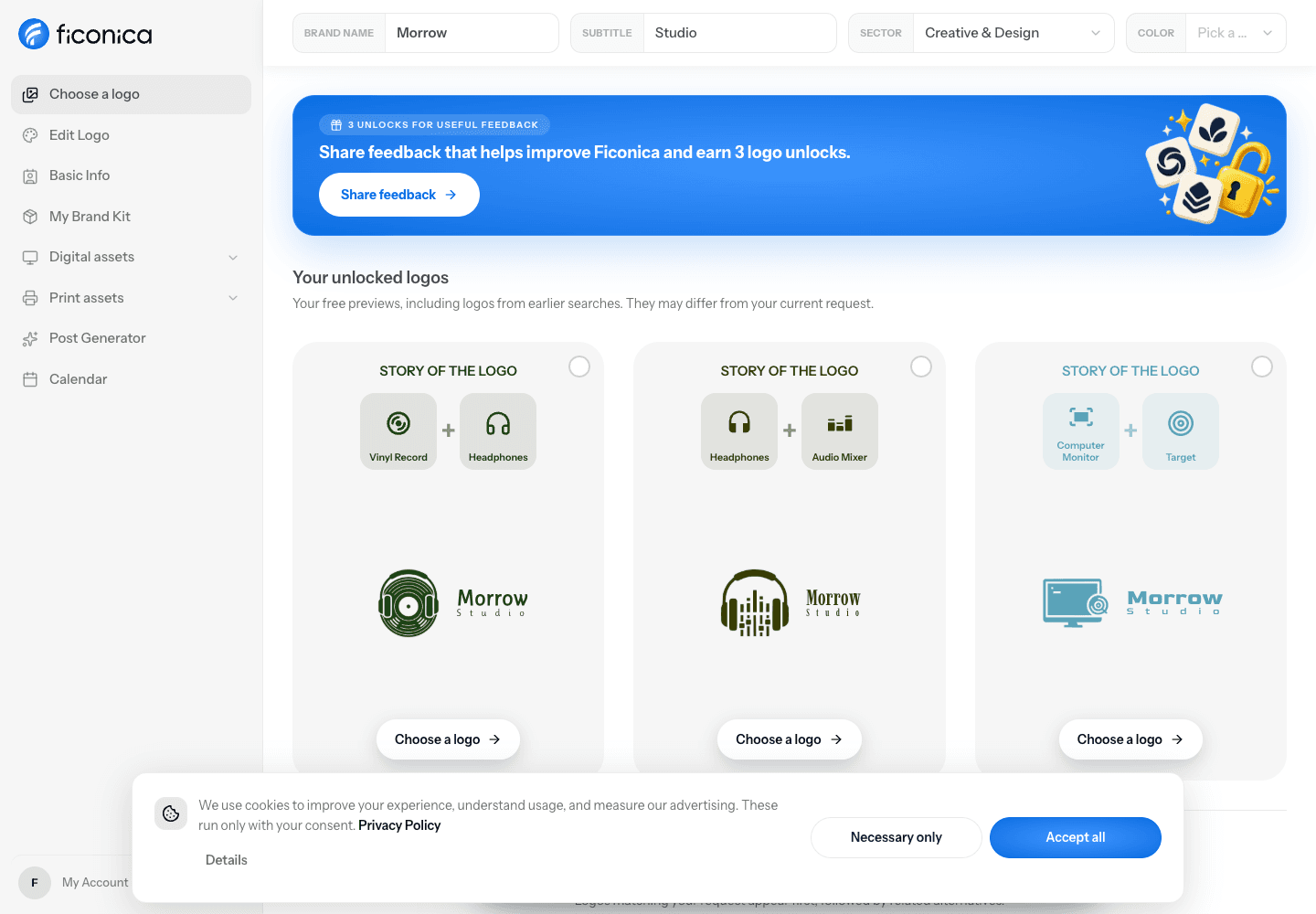
Start with your business name. Compare the symbol and lettering, then use the sector and color controls to refine your direction.
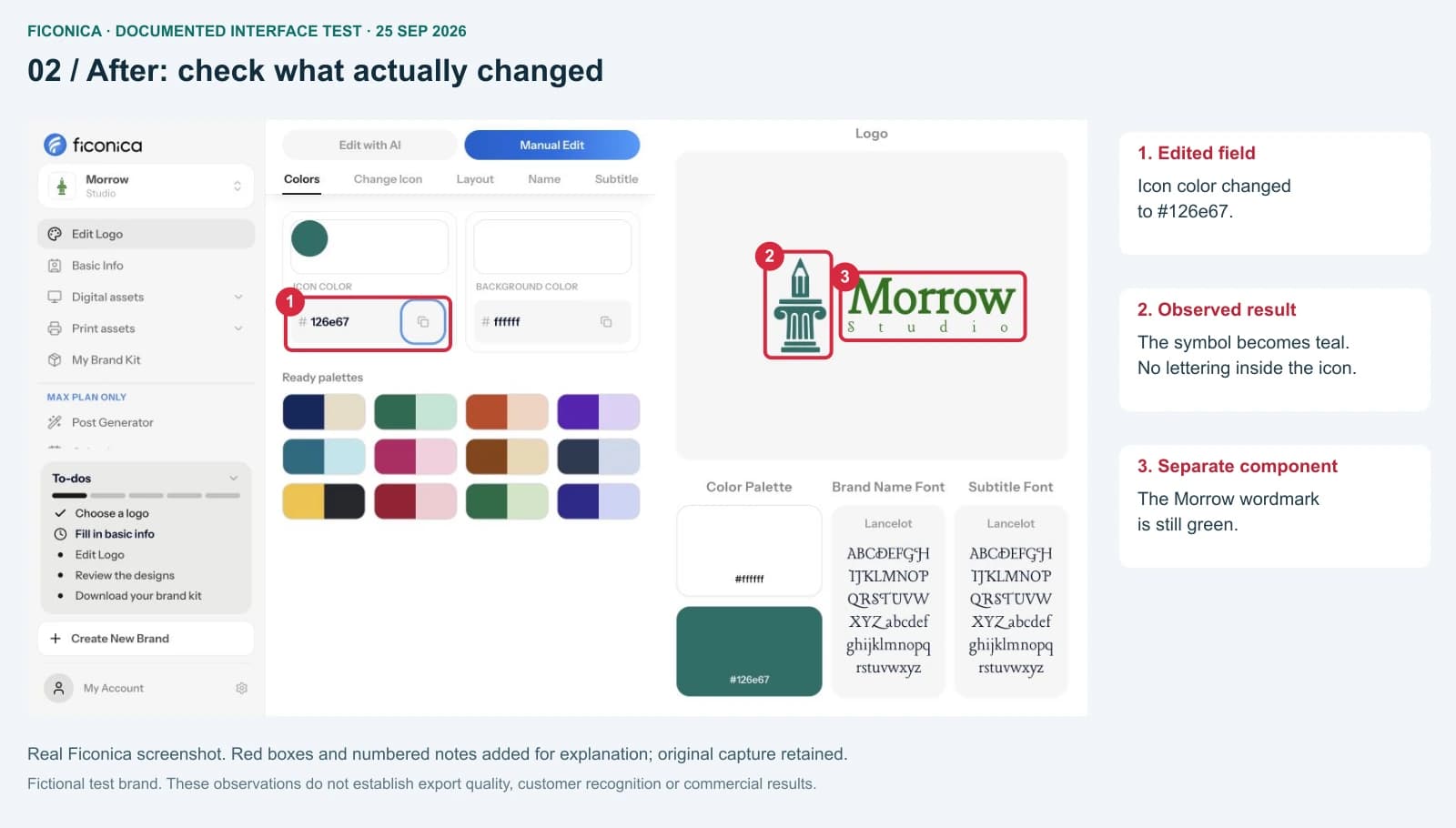
Change one color or layout setting at a time. Check the icon, business name and subtitle together after each edit.
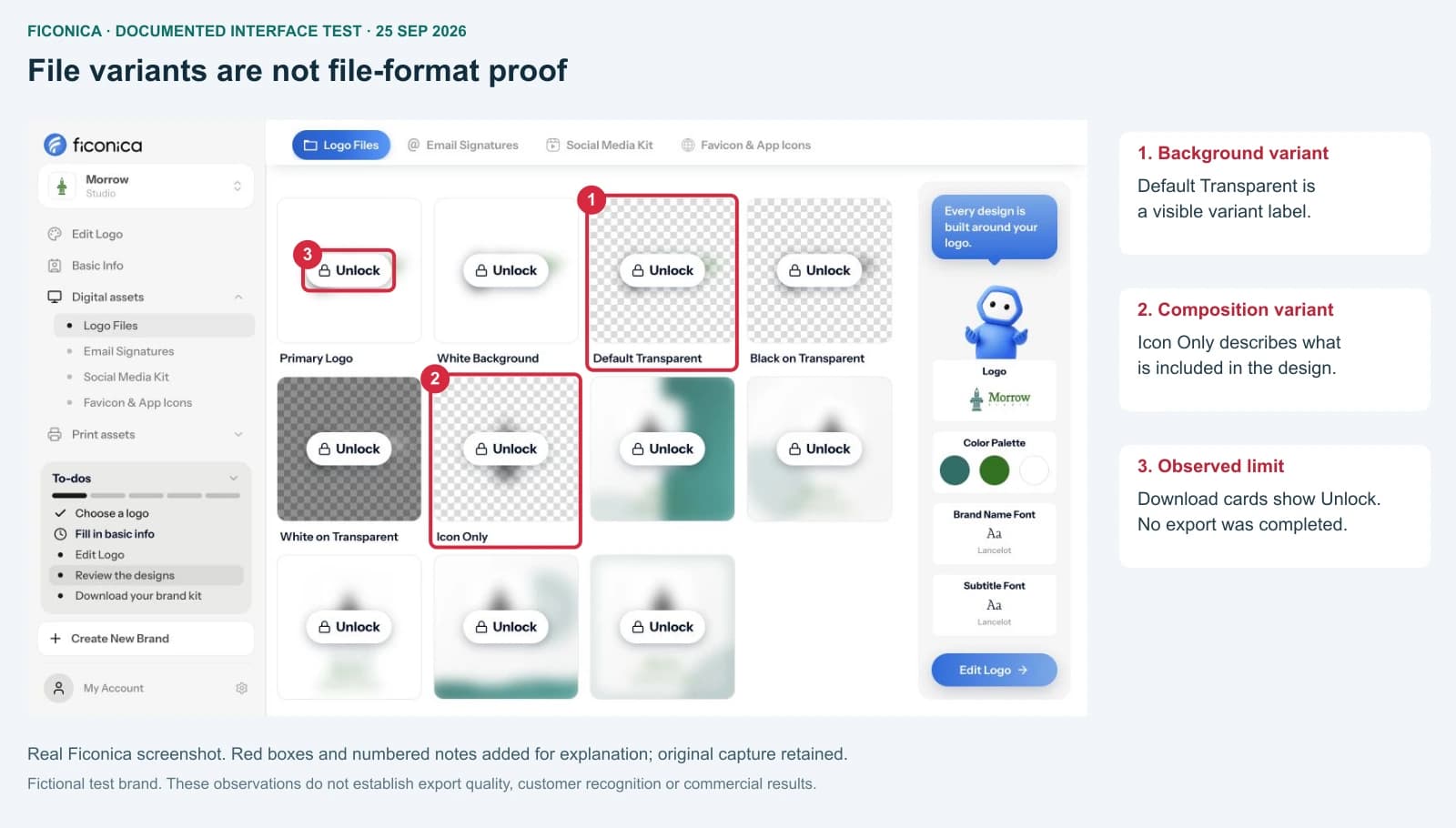
Explore full-logo, transparent and icon-only previews. Check your plan and available files before downloading.
In this Morrow Studio example, the icon changed from green (#097407) to teal (#126e67). The separate wordmark stayed green. Changing the icon color did not recolor every part of the logo.
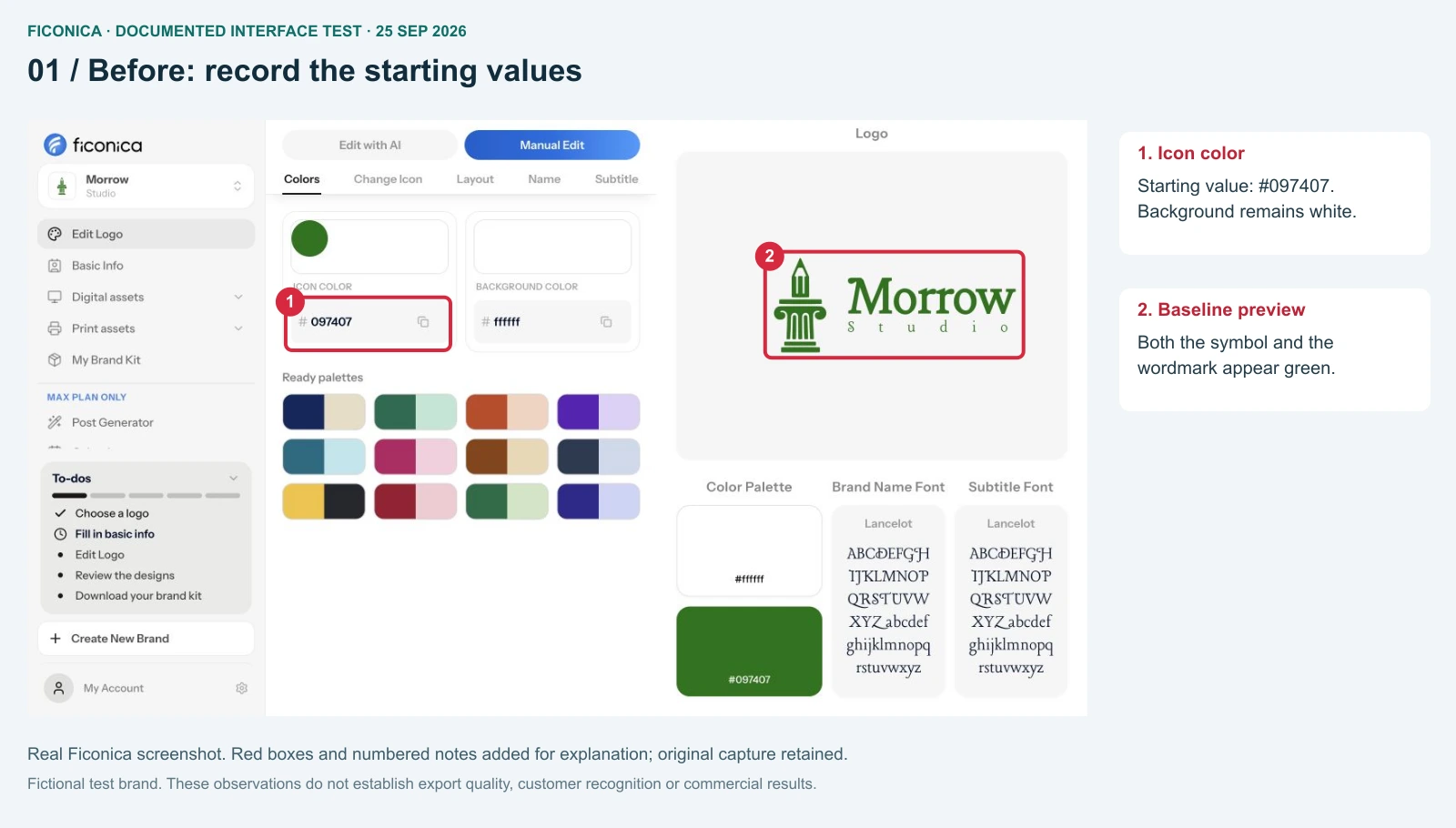
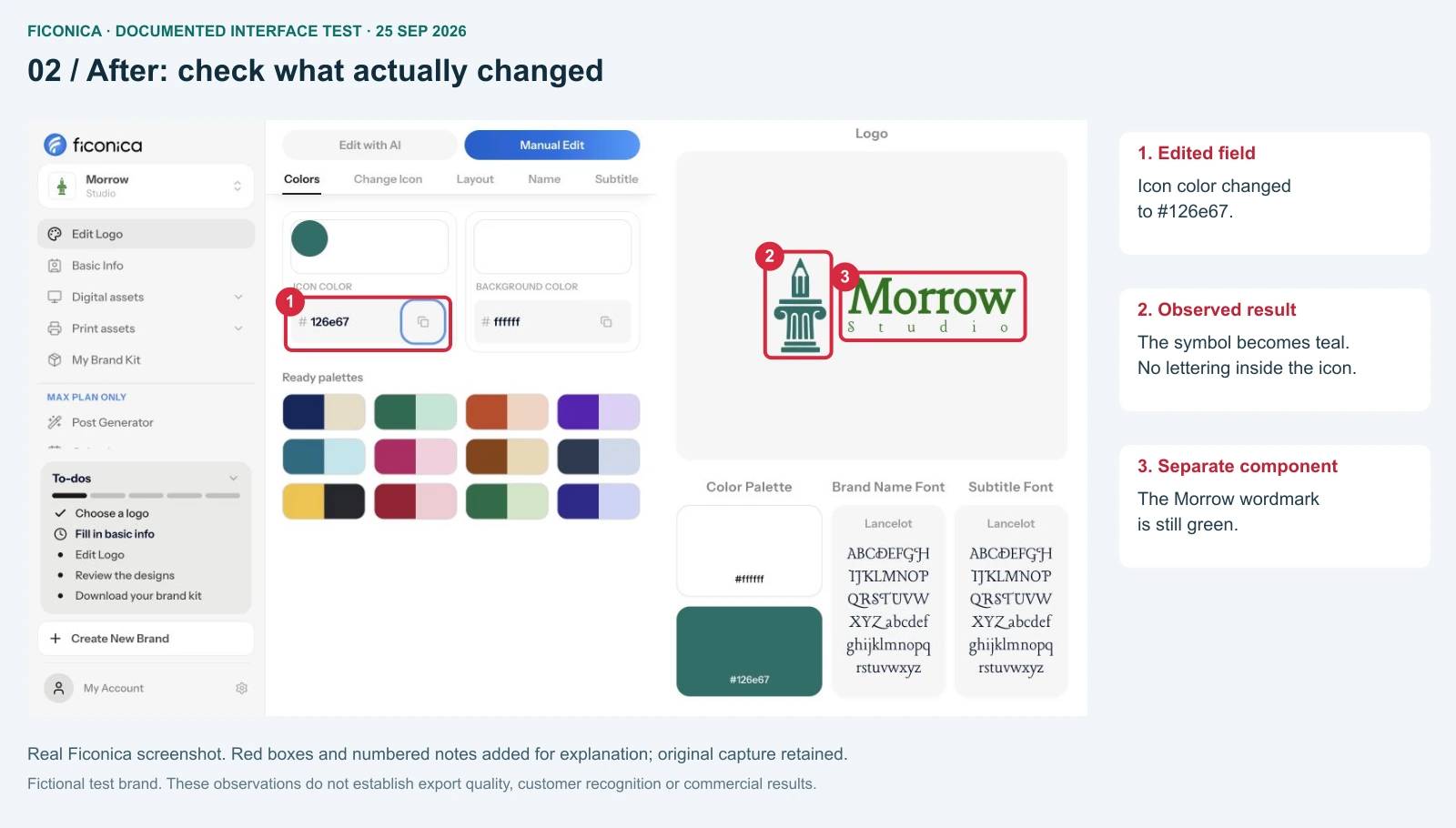
Real interface captures from 25 September 2026, with explanatory annotations. Morrow Studio is a fictional demo brand; the symbol contains no embedded brand lettering. The results screenshot above was captured separately on 5 October 2026. No paid export or customer outcome is demonstrated.
Compare the meaning of each symbol with the business you are building. Results are ranked by relevance, followed by related alternatives. A catalogue option should not be assumed to be exclusive.
Check whether your business name remains readable in a website header. For a small profile image, an icon-only variant may work better than the full composition.
Viewing a preview, starting a trial and downloading an unlocked file are different actions. Review the current plan, billing period and checkout terms before continuing.
Illustrative brand presentation · existing Deva demo gallery

Compare the full logo, icon-only and black or white variants against the background where they will appear. A transparent background does not automatically guarantee enough contrast.
Before ordering cards, packaging or signage, ask your printer which file format, dimensions and color setup the job requires. A screen preview alone is not a print proof.
Check features, billing and trial terms before paying.
Compare plans →Learn how to compare one logo adjustment at a time.
Read the editing guide →Take the next step with colors and typography around your logo.
Explore brand identity →Yes. The documented example shows the icon changing from green to teal in the editor. Check other parts separately: in that test, the wordmark kept its existing color.
No. Viewing a design does not mean its download is unlocked. Check your account’s available features and the current plan terms before downloading.
Do not assume a catalogue option is exclusive. Review the licensing terms before choosing a design for commercial use.
The Logo Files screen includes an icon-only variant. This can help in spaces where the full business name becomes too small.
Ask your printer about the required file format, dimensions and color setup. Check the actual downloaded file against those requirements before ordering.
Explore logo options, then review the current plan before unlocking paid features or downloads.