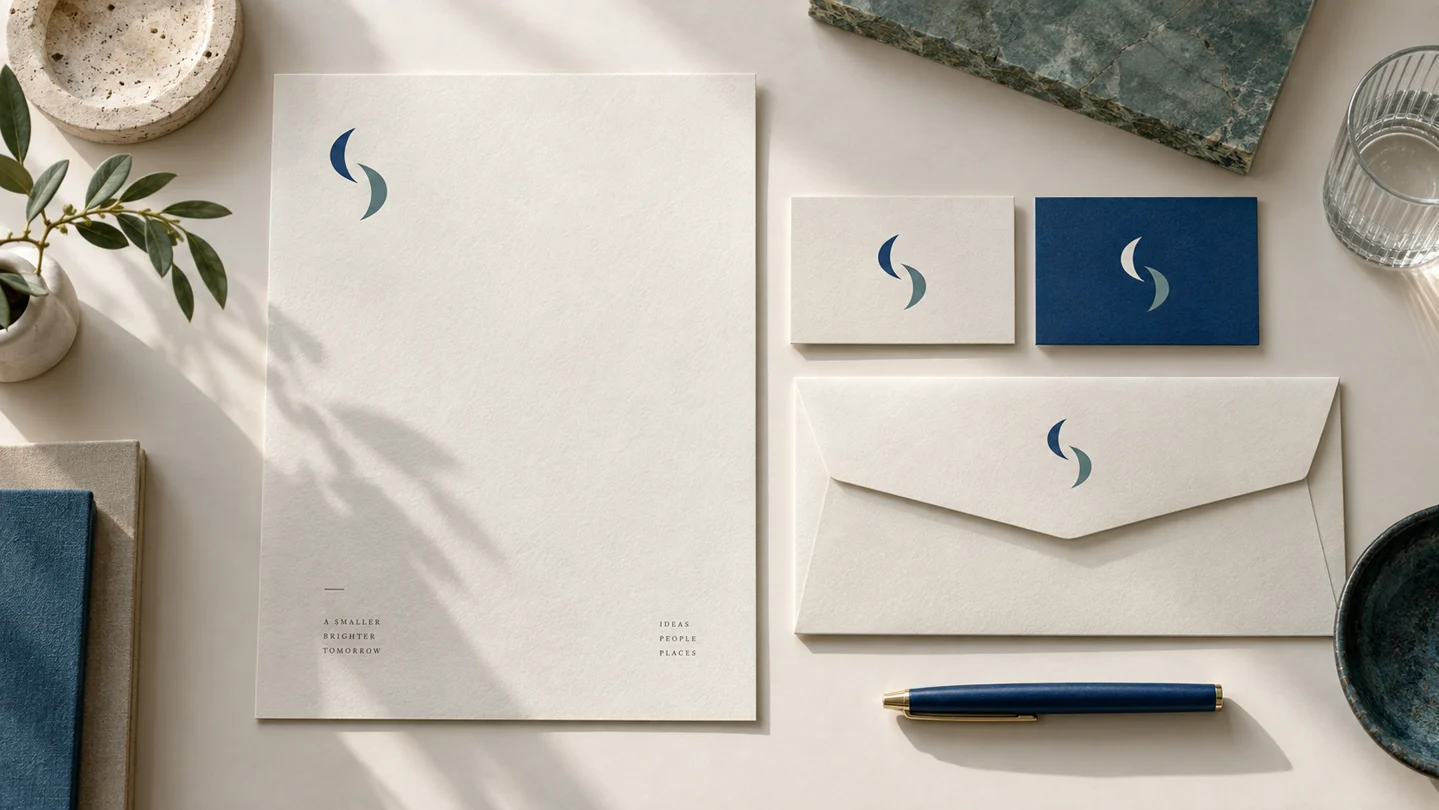
The best logo files for printing are usually vector files, especially PDF, AI, EPS, or SVG when your print vendor accepts them. Vector artwork stays sharp at any size, from a small return-address label to a trade show banner. Keep a high-resolution PNG as a backup for situations where a printer needs a raster image, but do not rely on a low-resolution web image for professional print.
The practical goal is not to collect every file type. It is to have the right version of your logo ready before a printer asks for it, so you do not have to recreate artwork or approve a blurry proof at the last minute.
Why vector files are the best logo files for printing
A vector logo is built from mathematical paths rather than a fixed grid of pixels. That means it can be enlarged or reduced without losing edge quality. A clean vector mark should look equally crisp on a business card, storefront sign, embroidered patch reference, or presentation folder.
By contrast, a JPG or PNG is made of pixels. Enlarging it beyond its original dimensions can produce soft edges, visible squares, or uneven curves. A 500-pixel-wide logo may look fine in an email signature, but it is not automatically suitable for a 24-inch window decal.
For most small businesses, the safest starting point is a print-ready PDF. It is widely recognized by commercial printers, can preserve vector paths, and is easy to preview before sending. Your printer may instead request an AI or EPS file for a particular workflow. SVG is also a vector format, though it is more common for websites and digital products than traditional print production.
File extensions alone do not guarantee quality. A PDF can contain a low-resolution image, and a PNG can be placed inside an AI file. If you received a file from a designer or branding platform, open it at a large zoom level. Smooth edges and sharp details are a useful visual check, but your print vendor can confirm whether the file works for their equipment.
The file formats to keep in your brand folder
You do not need a design degree to organize logo assets. A small, clearly named folder can prevent most common print-file problems.
PDF: the practical print default
A vector PDF is generally the best file to send when you are ordering business cards, flyers, menus, brochures, stickers, or signage. It can hold vector artwork and often retains the layout and fonts as intended. Ask the vendor whether they need crop marks, bleed, or a specific PDF standard before exporting a complete design.
For a logo by itself, a clean PDF with a transparent or white background is often enough. Avoid converting it to an image just because it is easier to email. The original PDF is more useful to a printer.
AI and EPS: editable production files
AI is the native format associated with Adobe Illustrator. EPS is an older vector format that many print shops still accept. Both may be requested for larger-scale production, specialty items, or workflows where the printer needs to place the logo into a template.
These are valuable files to retain, but they are not always the most convenient files for everyday use. Many business owners cannot preview or edit them without design software. Keep them as master assets and send them only when requested.
SVG: useful, with one question for the printer
SVG is a flexible vector format that works particularly well for websites, digital interfaces, and some cutting or engraving workflows. It can also be suitable for print, but acceptance varies by vendor. Before submitting it, ask whether the printer prefers SVG, PDF, EPS, or another format.
If a print shop has a specific template or upload portal, follow its specifications rather than assuming the most technically flexible file will be accepted.
PNG: a high-resolution fallback
PNG supports transparent backgrounds, which makes it useful when a printer or merchandise vendor asks for an image file. It is also helpful for placing a logo on a simple document, presentation, or online order form.
For print, PNG needs enough resolution at its final printed size. A common benchmark is 300 pixels per inch, or PPI. For example, a logo printed at 4 inches wide should ideally be at least 1,200 pixels wide. This guideline is useful for standard full-color printing, though some products and production methods have different requirements.
JPG: use only when required
JPG files are compact and easy to share, but they do not support transparency and use compression that may reduce image quality. A high-resolution JPG can be acceptable for certain print jobs, especially photographic layouts. It is rarely the first choice for a standalone logo when a vector file is available.
Print color matters as much as file format
A sharp logo can still print differently than expected if the color setup is wrong. Screens display color with RGB light, while most commercial printing uses CMYK ink. Bright RGB blues, greens, and neons may shift when converted to CMYK because ink cannot reproduce every color visible on a screen.
For ordinary business materials, many printers will handle the conversion. Still, ask how they prefer files to be supplied. Some want RGB artwork and manage conversion themselves; others provide a CMYK template or profile. Do not convert files repeatedly, as multiple conversions can create inconsistencies.
Specialty printing adds another consideration. Screen printing, embroidery, foil, vinyl, and spot-color printing may use a limited number of colors or production-specific standards. In those cases, provide a one-color logo version and ask the vendor for a proof. Fine details, thin strokes, and subtle gradients may need adjustment for the material and method.
Build versions before you need them
A print-ready logo is not one file. It is a small set of intentional variations that can handle different backgrounds, spaces, and production limits. At minimum, keep a full-color version, a black version, a white reverse version for dark backgrounds, and a one-color version.
You may also need a horizontal logo, a stacked logo, and an icon or symbol-only mark. The horizontal version often works on letterheads and banners. A stacked mark can fit square labels or social profile materials. The symbol-only version is useful only if it remains recognizable without the business name in the context where you use it.
Do not ask a printer to add a white background, recolor your logo, or rearrange its elements unless that is part of their stated design service. Those changes can create a result that no longer matches the rest of your brand materials.
A simple handoff process for printers
Before placing an order, send the vendor the vector PDF first and state the intended product, size, and quantity. Ask whether they need bleed, safe margins, color instructions, or a different file type. If the logo will be printed on a colored surface, specify whether you are providing the standard color version or the white reverse version.
Review the digital proof at actual scale when possible. Tiny type, narrow gaps, and thin lines can behave differently on a card than on a large screen. For a significant order, such as packaging or exterior signage, a physical sample may be worth considering if the vendor offers one.
Name your files clearly. A structure such as `business-name_logo_primary_color.pdf` is more useful than `final-final-new.pdf`. Include the version and color treatment in the name, especially when multiple people handle ordering.
Where an organized brand kit helps
Early-stage businesses often lose time because logo files, colors, and font choices are spread across email attachments and old folders. A coordinated brand kit can make routine production easier by keeping core visual assets together and showing how they should be used.
Ficonica is one option for entrepreneurs who want to create a coordinated visual identity and download assets for digital and print use. Before ordering a printed product, review the files included with your selected product and compare them with the printer's requirements. For an extensive packaging system, custom illustration, or complex production needs, a designer or agency may be the more suitable partner.
The right file is the one that preserves your logo clearly in the real-world format you are producing. Start with a vector PDF, retain the editable vector originals, keep a properly sized PNG available, and let the printer's specifications guide the final handoff.